GPS Systems by MrDino
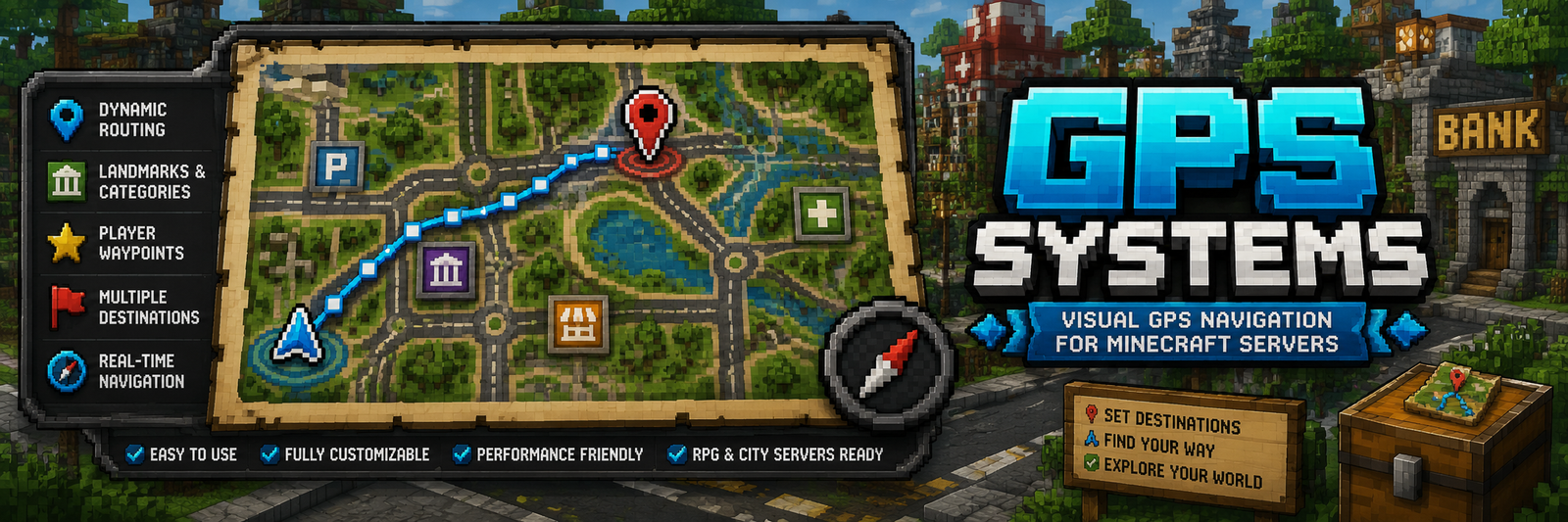
GPS Systems is a Spigot/Paper plugin that adds visual GPS navigation to Minecraft servers. It lets players open a GPS map, choose destinations, follow active routes, save private locations and receive turn-by-turn guidance through particles, map rendering, boss bars and action bar instructions.
The plugin is designed for city, roleplay, survival and network-based servers where roads, districts, public services and landmarks need guided navigation.

Requirements
- Minecraft server: Spigot/Paper compatible with API
1.20 - Java:
17 - Permission plugin: optional, but recommended for admin/player access control
Main Features
- In-game GPS map with boot/startup screen.
- Public destinations configured by admins.
- Private player destinations saved from the GPS map.
- Road-network routing using intersections and links.
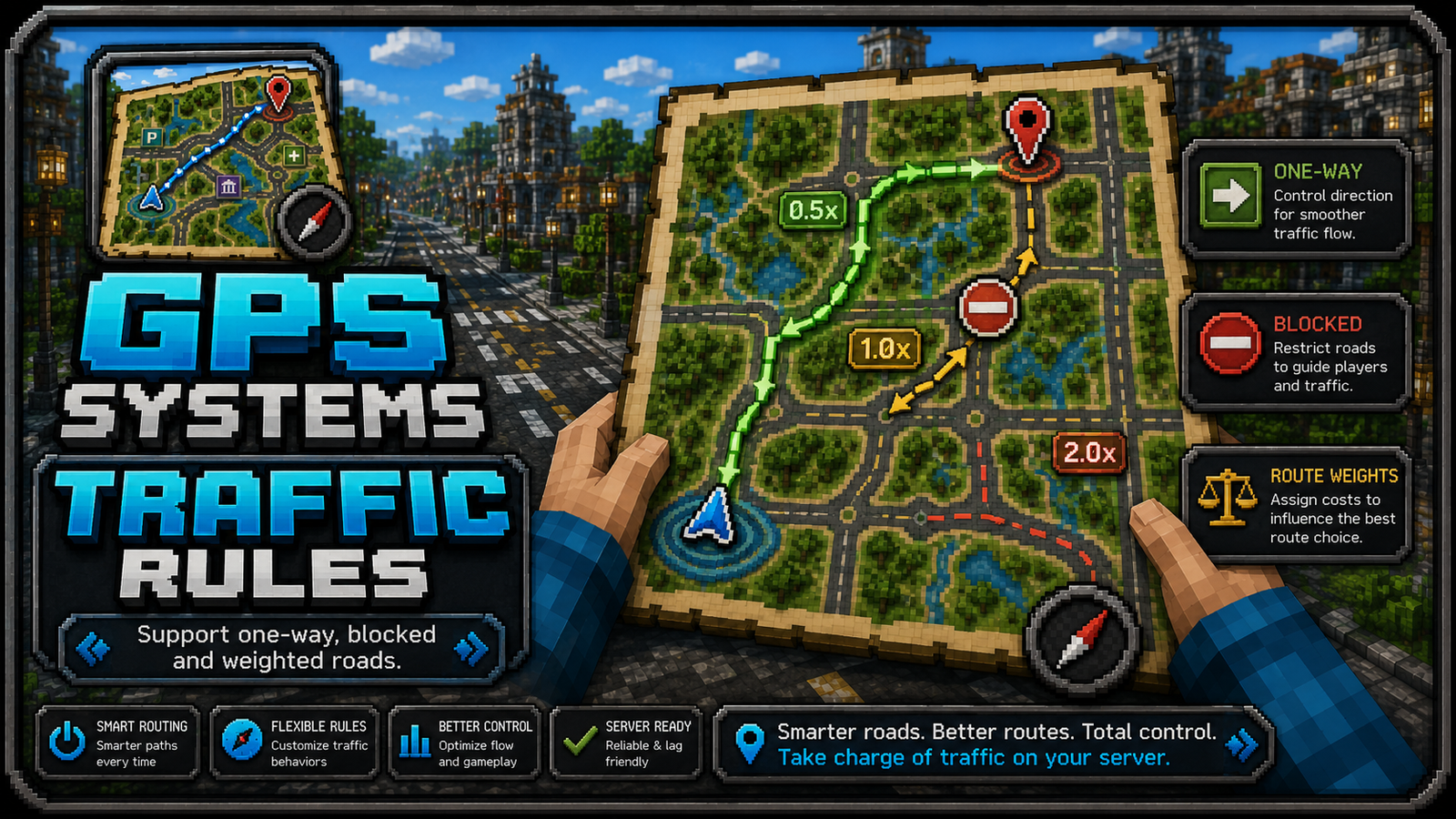
- One-way, blocked and weighted road rules.
- Dynamic recalculation when players leave the route or switch lanes.
- Destination categories with colors, symbols and map icon patterns.
- Admin tools to build, link, remove and inspect route networks.
- Admin teleport command to jump directly to a destination.
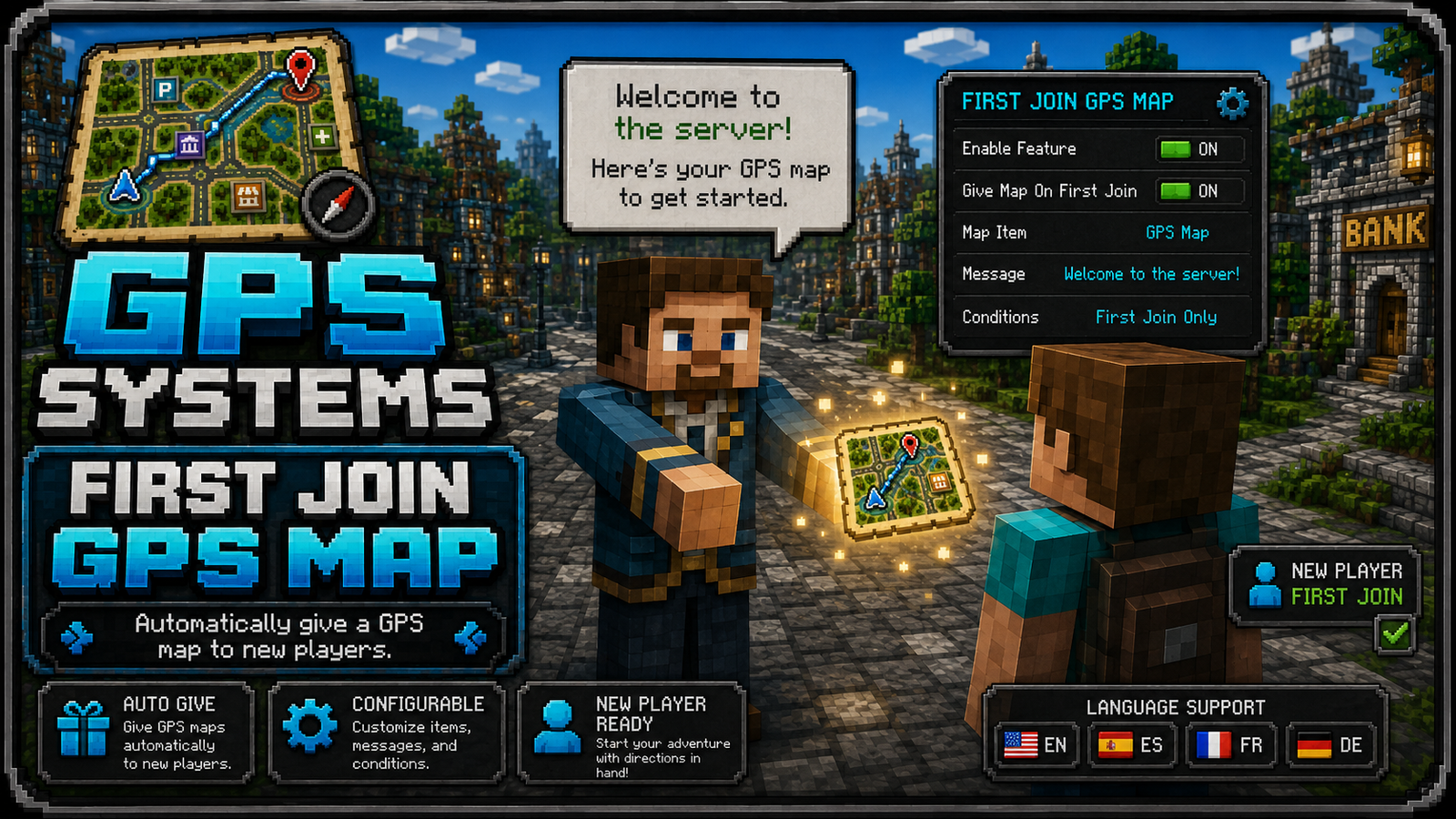
- Automatic GPS map given to new players, configurable.
- Multi-language resource files:
en_US,es_ES,fr_FR,de_DE.
Instalación
- Download the plugin
.jar. - Copy the
.jarinto your server plugins folder:
plugins/
- Restart the server.
- Edit the generated config file:
plugins/GPSSystems/config.yml
- Restart again after changing configuration values.
How It Works
GPS Systems uses three main data layers:
Destinations:
Public and private places players can navigate to.
Public destinations are stored underdestinationsindestinations.yml.
Private destinations are stored underplayer-destinations.<uuid>.
Route Network:
The road graph used by the GPS. It is stored innetwork.ymlas route points/intersections and connections.
The GPS calculates routes across this graph instead of drawing impossible straight lines through buildings.
Map Rendering:
The filled map item renders destination menus, route lines, completed grey sections, current blue route sections, destination markers and local dotted final segments.
Basic Player Flow

- Player receives or obtains a GPS map.
- Player right-clicks the map to boot the GPS.
- Player opens the map menu and selects
Destinations. - Player selects a destination.
- GPS starts navigation with route particles, map route preview, boss bar/action bar information and destination marker.
- The route updates as the player moves.
Admin Setup Flow
- Use
/gps adminto open the admin panel. - Get the GPS tools.
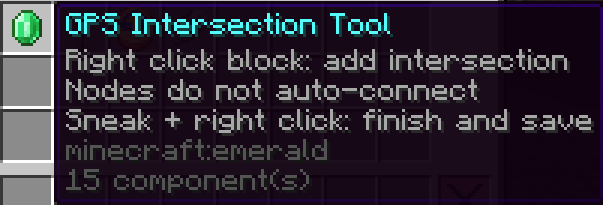
- Create intersections with the
GPS Intersection Tool.

4. Link intersections to create roads.
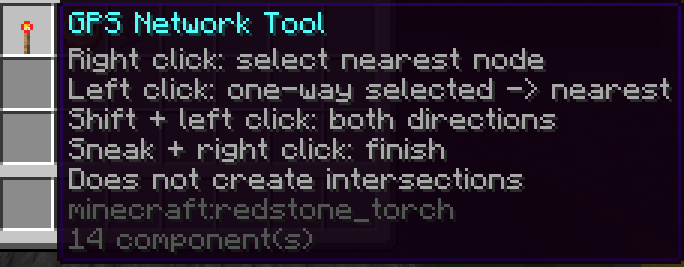
Making ONE WAY roads: Right Click one node, Left Click the next node.


Making BOTH WAY roads: Right Click the starting node, Shift Left Click the next node.


5. Create destinations with the GPS Destination Tool or /gps set.
6. Link Destinations with the Main Route

7. Test the route using /gps start <destination> or the GPS map.
Tools
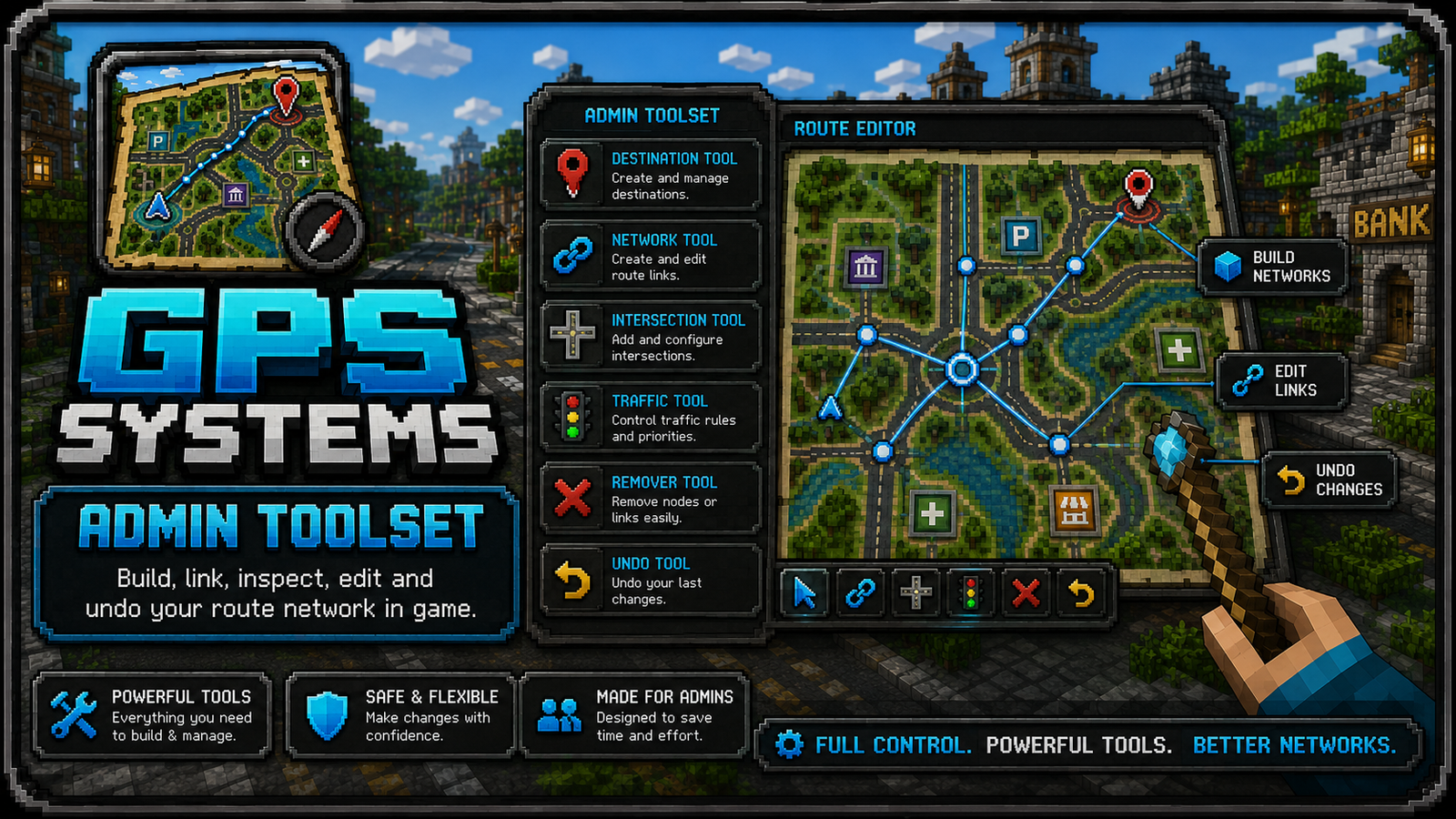
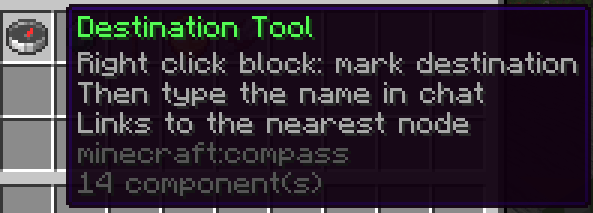
GPS Destination Tool: marks and creates public destinations.
GPS Network Tool: visual network/editor overlay tool.
GPS Intersection Tool: creates and links intersections.
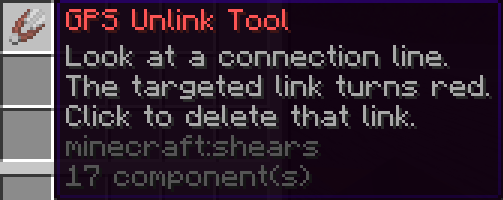
GPS Remover Tool: removes links or intersections.
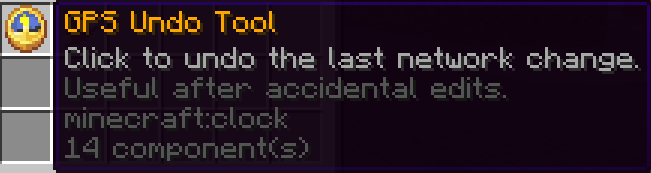
GPS Undo Tool: reverts recent route-network changes.
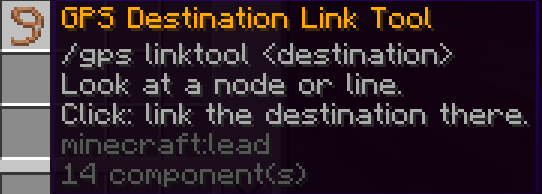
GPS Destination Link Tool: Links destinations with a custom walking path to the main route.

GPS Toolset Tool: admin menu item that gives the full tool set.
Commands
| Command | Permission | Description |
|---|---|---|
|
/gps |
gpssystems.use |
Opens the GPS menu. |
|
/gps menu |
gpssystems.use |
Opens the GPS menu. |
|
/gps start (destination) |
gpssystems.use |
Starts navigation to a destination. |
|
/gps stop |
gpssystems.use |
Stops current navigation. |
|
/gps list |
gpssystems.use |
Lists available destinations. |
|
/gps admin |
gpssystems.admin |
Opens the admin menu. |
|
/gps reload |
gpssystems.admin |
Reloads config, languages, destinations and network data. |
|
/gps set (id) (display name) |
gpssystems.admin |
Creates a destination at your current location. |
|
/gps point (id) (display name) |
gpssystems.admin |
Creates a route point/intersection at your current location. |
|
/gps connect (pointA) (pointB) |
gpssystems.admin |
Connects two route points. |
|
/gps link (destination) (point) |
gpssystems.admin |
Links a public destination to a route point. |
|
/gps builder |
gpssystems.admin |
Toggles route builder mode. |
|
/gps editor |
gpssystems.admin |
Toggles network editor overlay. |
|
/gps tool |
gpssystems.admin |
Gives admin GPS tools. |
|
/gps map |
gpssystems.admin |
Gives a GPS map. |
|
/gps tp (destination) |
gpssystems.admin |
Teleports to a destination. |
|
/gpstp (destination) |
gpssystems.admin |
Teleports to a GPS destination without overriding vanilla /tp. |
Permissions
| Permission | Default | Description |
|---|---|---|
|
gpssystems.use |
true |
Allows players to use GPS menus and navigation. |
|
gpssystems.admin |
op |
Allows admin tools, editing, reload and teleport commands. |
Configuration Files
config.yml
Controls global behavior:
- Language selection.
- GPS map zoom and schematic mode.
- Automatic GPS map on first join.
- Route following corridor.
- Lane matching.
- Wrong-direction matching.
- Dynamic recalculation.
- Destination local/direct dotted segments.
- Boss bar, action bar and particles.
- Audio and visual behavior.
Important setting:
					settings:
  give-gps-map-on-first-join: true
This gives new players a GPS map automatically.
destinations.yml
Stores public server destinations, private player destinations and category styles.
Example public destination:
					destinations:
  spawn:
    enabled: true
    display-name: "Spawn"
    description: "Main server spawn."
    world: "world"
    x: 0.5
    y: 64.0
    z: 0.5
    yaw: 0.0
    pitch: 0.0
    icon: "COMPASS"
    permission: ""
    category: "Spawn"
Category styles define how destinations appear on the GPS map:
					category-styles:
  enabled: true
  color-labels: true
  rules:
    police:
      color: "#3B82F6"
      symbol: "P"
      categories:
        - "Police"
      pattern:
        - ".###."
        - "#####"
        - "##.##"
        - ".###."
        - "..#.."
network.yml
Stores the route network:
points: intersections/nodes.streets: named street groups.edge-streets: link-to-street mapping.edge-rules: one-way, blocked or weighted roads.destination-points: public destination to network point links.
Most servers should edit this with in-game tools, not manually.
Editing Destination Icons In Game
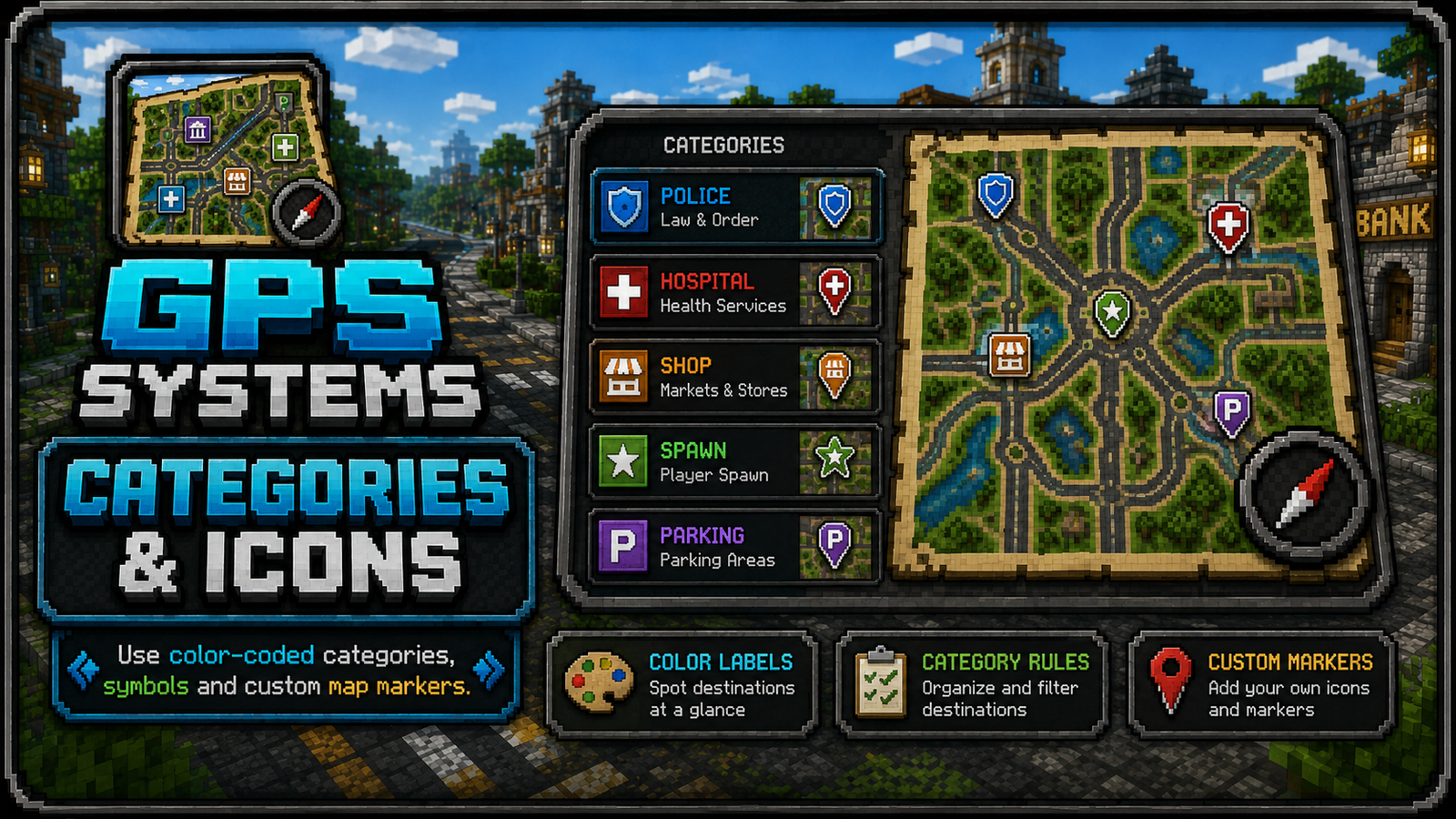
Admins can edit public destination icons from the Public Destinations menu.
- Left click: start navigation.
- Right click: rename destination.
- Shift-click: set the destination icon using the item in your cursor or main hand.
The icon is saved into destinations.yml as the Bukkit material name.
Traffic Rules
Traffic rules live in network.yml under edge-rules.
Supported directions:
both: normal two-way road.oneway: only fromfromtoto.reverse: only fromtotofrom.blocked: GPS cannot use this connection.
Cost multipliers can influence routing:
1.0: normal road.2.0: less preferred route.0.5: preferred/fast route.
Route Behavior
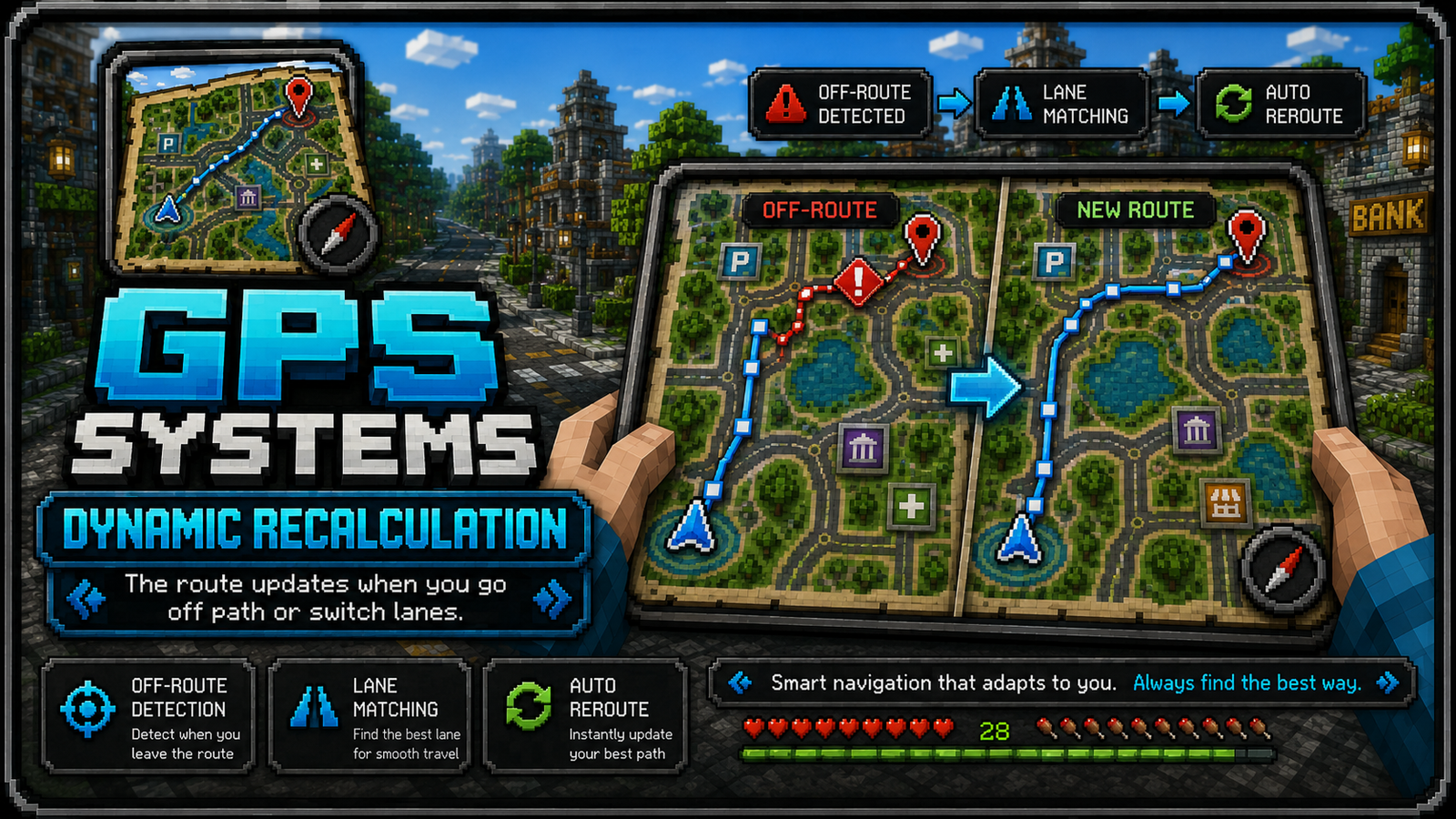
GPS Systems tries to keep routes stable while still correcting mistakes quickly:
- It follows the active route instead of recalculating constantly.
- It detects when players leave the route.
- It checks lane/direction when configured.
- It can add dotted local segments when the destination is beside the road or very close to the player.
- It greys out completed map route sections.
Key options:
					navigation:
  dynamic-recalculate: true
  lane-match-recalculate: true
  route-direction-match: true
  destination-local-direct: true
  destination-local-direct-player-radius: 70.0
Recommended Setup Tips
- Place intersections at meaningful road joins, lane splits and turn points.
- Avoid extremely long road links if the road has curves or multiple entrances.
- Use one-way rules for separated lanes.
- Use categories for readable destination menus and map colors.
- Keep destination icons simple and recognizable.
- Test routes from several directions, not only from spawn.
Support Notes
If a route looks wrong:
- Check the destination is linked to a valid network point.
- Check one-way rules are not reversed.
- Check nearby parallel lanes are represented correctly.
- Increase or decrease lane matching radius depending on road width.
- Use the in-game editor overlay to inspect intersections and links.