


Set the Fixture Mode
The Fixture Mode determines which DMX personality the fixture uses and how many DMX channels it occupies.
The mode selected in TRP should match the mode patched in your lighting console.
1. Open the Fixture
Use the fixture with an empty hand to open its configuration screen.
Most TRP fixtures use the built-in physical display for configuration.
2. Select the Fixture Mode
Find the Mode / Personality setting and select the mode you want to use.
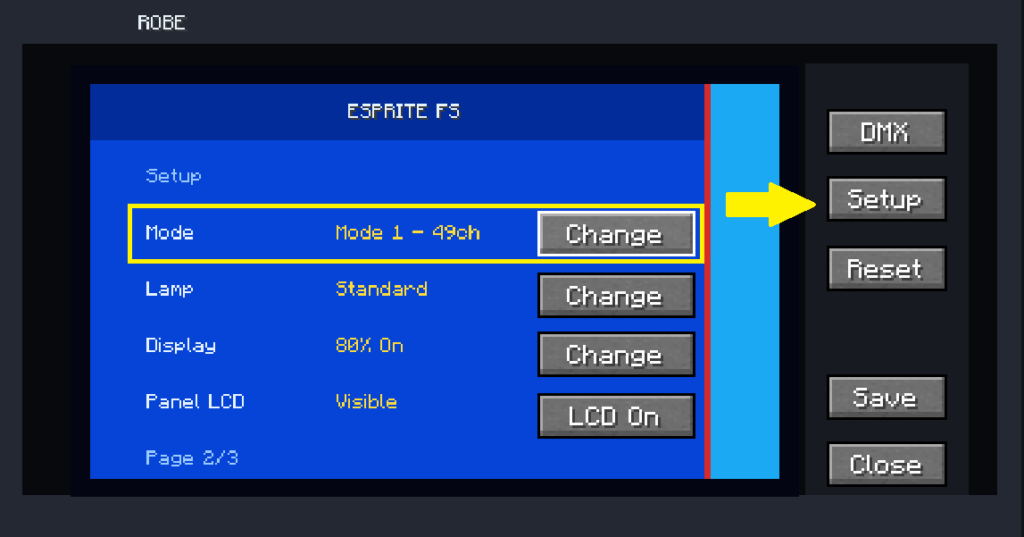
For example, a fixture may provide:
Theatrical
Mode 1
Mode 2
Theatrical Gobos
The available modes are different for every fixture.
Check the fixture’s wiki page for its exact modes and channel counts.
3. Check the Channel Count
Each mode uses a different number of DMX channels.
Example:
MegaPointe

Theatrical → 7 channels
Mode 1 → 39 channels
Mode 2 → 34 channels
Theatrical Gobos → 10 channels
Your selected mode determines the fixture’s DMX footprint.
4. Patch the Same Mode on Your Console
Your lighting console must use the same fixture personality selected in TRP.
Example:
TRP
MegaPointe — Mode 1 — Address 101

Console
MegaPointe — Mode 1 — Address 101
✅ Correct
Using different personalities can cause channels to control the wrong functions.
5. Check the Address
Changing the mode can change the number of channels used by the fixture.
After changing modes, make sure the fixture does not overlap another fixture in the same DMX universe.
PATT Fixtures
PATT fixtures are configured differently.
For:
- PATT 2017
- pixelPATT
- HolyPATT
the DMX personality is selected from the PATT Driver, not directly on the fixture.
FOOTSIE2
To access the FOOTSIE2 configuration:
- Sneak + Use to open both cable covers.
- Use the fixture normally.
- Select the required mode from the configuration screen.
Quick Checklist
Open Fixture
↓
Select Mode
↓
Check Channel Count
↓
Set Universe + Address
↓
Patch Same Mode on Console
↓
Send DMX
If the fixture reacts incorrectly, first check that the Mode, Universe and Address match your lighting console.