


PATT Driver
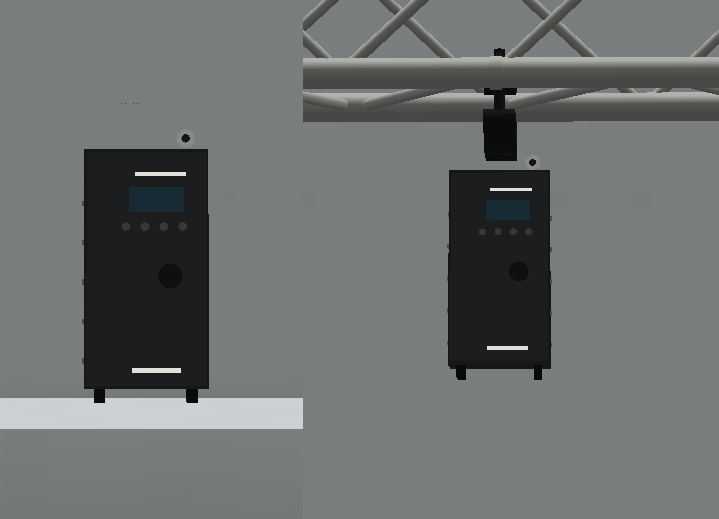
The PATT Driver is an external DMX and network controller implemented in Theatrical: Realistic Pack (TRP) for the PATT fixture family.
It is used to configure, link and control:
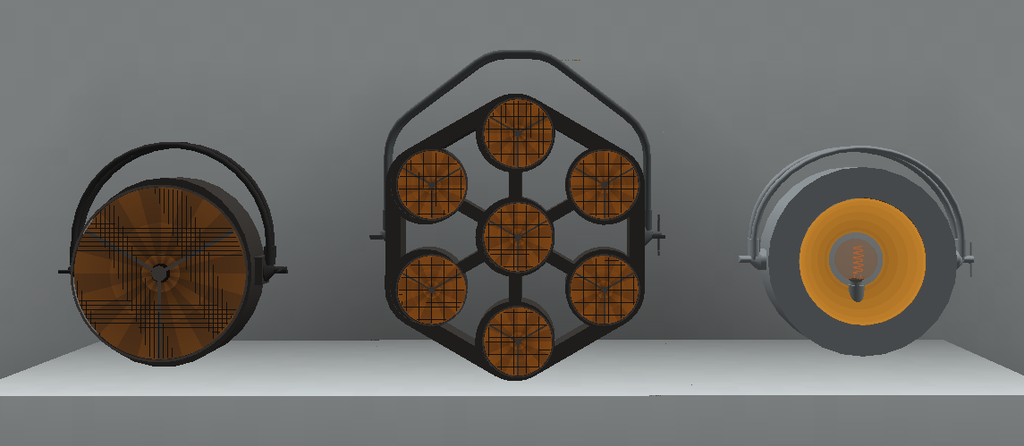
- PATT 2017
- pixelPATT
- HolyPATT
Unlike the PATT luminaires themselves, the PATT Driver receives the Theatrical Network, DMX Universe, DMX Address and personality configuration, decodes the incoming control data and distributes the resulting output to its linked fixtures.
The PATT Driver is a controller, not a lighting fixture, and is therefore not counted as one of TRP’s 24 luminaires.
Official Resources
ROBE PATT Driver User Manual
Official ROBE PATT Driver User Manual
The real PATT system also uses a separate Driver to provide control and connectivity for compatible PATT luminaires.
Overview
| Manufacturer | ROBE |
| Device Type | External PATT Controller |
| Lighting Fixture | ❌ No |
| Theatrical Network | ✅ Supported |
| DMX Universe | ✅ Configurable |
| DMX Address | ✅ Configurable |
| DMX Personalities | 7 for PATT 2017 / pixelPATT |
| HolyPATT Personality | 1-channel Dimmer |
| Maximum Linked Fixtures | 16 |
| Maximum Link Distance | 10 blocks |
| Mixed PATT Models per Driver | ❌ No |
| Persistent Fixture Links | ✅ Yes |
| Truss Mounting | ✅ Yes |
| Truss Mount Tool | ✅ Yes |
| Focus Tool | ❌ No |
| Custom Gobos | ❌ No |
| RoboSpot | ❌ No |
| FollowMe | ❌ No |
| Dedicated Flight Case | ❌ No |
| Survival-Friendly Carrying | ❌ No |
Compatible Fixtures
The PATT Driver can control three PATT models:
- PATT 2017
- pixelPATT
- HolyPATT
However, one Driver can only control one PATT model type at a time.
For example:
PATT Driver
├── PATT 2017
├── PATT 2017
├── PATT 2017
└── PATT 2017
✅ Valid
But:
PATT Driver
├── PATT 2017
├── pixelPATT
└── HolyPATT
❌ Invalid
PATT 2017, pixelPATT and HolyPATT cannot be mixed in the same Driver target selection.
DMX Modes
When controlling PATT 2017 or pixelPATT, the PATT Driver provides seven personalities:
| Mode | Personality | Channels |
|---|---|---|
| Mode 1 | Wash | 13 |
| Mode 2 | Pattern | 32 |
| Mode 3 | Pixel RGB | 40 |
| Mode 4 | Pixel RGBW | 47 |
| Mode 5 | Pattern Full RGB | 53 |
| Mode 6 | Pattern Full RGBW | 60 |
| Mode 7 | Pixel RGBW Only | 28 |
Mode 1: Wash is the default personality.
Mode 1 — Wash
13 channels
This is the default PATT Driver personality.
It provides the compact wash-oriented control set for compatible RGBW PATT fixtures.
Mode 2 — Pattern
32 channels
Adds pattern-oriented control alongside the general PATT output functions.
Mode 3 — Pixel RGB
40 channels
Provides individual RGB control for the seven lighting elements.
Mode 4 — Pixel RGBW
47 channels
Extends individual pixel control to full RGBW output.
Mode 5 — Pattern Full RGB
53 channels
Combines detailed RGB pixel operation with the extended pattern system.
Mode 6 — Pattern Full RGBW
60 channels
Provides the largest RGBW pattern-oriented personality for the PATT family.
Mode 7 — Pixel RGBW Only
28 channels
Provides direct RGBW control of the seven individual pixel elements without the larger Pattern Full control set.
Implemented Functions
Depending on the selected personality, the PATT Driver can decode and distribute functions including:
- Global colour
- RGB control
- RGBW control
- Individual pixel control
- Global intensity
- Shutter / strobe
- Patterns
- Pattern colour
- Active zones
- Colour mixing
- Colour macros
- CTC / white-point behaviour
- Transition effects
The exact functions available depend on the currently selected personality.
HolyPATT Dimmer Mode
HolyPATT uses a different control system from PATT 2017 and pixelPATT.
When the Driver is configured for HolyPATT, the normal seven PATT personalities are replaced by:
| Personality | Channels |
|---|---|
| HolyPATT Dimmer | 1 |
The single channel controls the intensity of the connected HolyPATT fixtures.
HolyPATT retains its warm tungsten-style appearance while its output level follows this dimmer channel.
Controller Configuration
Interact with the PATT Driver to open its dedicated configuration screen.
The screen provides controls for:
- Theatrical Network
- DMX Address
- DMX Universe
- DMX Personality
- Nearby PATT fixtures
- Linked fixture selection
Theatrical Network
The PATT Driver can be assigned to a Theatrical Network.
The selected network is persisted with the controller.
The Driver can use the normal Theatrical network / DMX workflow while its dedicated interface is used to manage the connected PATT fixtures.
DMX Address
The PATT Driver provides an editable DMX starting address.
The implementation limits this value to the normal DMX address range:
1–512
The footprint used from that starting address depends on the selected PATT personality.
DMX Universe
The Driver also provides a configurable DMX Universe.
This determines which incoming universe supplies the PATT Driver’s control data.
The Driver then decodes the selected personality beginning at its configured DMX Address.
Linking Fixtures
The PATT Driver includes a nearby fixture scanner.
The target list shows compatible PATT fixtures within a maximum spherical cable range of:
10 blocks
A single Driver can link up to:
16 fixtures
simultaneously.
Fixture Target List
The Driver interface provides information about nearby PATT fixtures including:
- Fixture model
- Block coordinates
- Distance
- Linked state
- Whether another Driver already controls the fixture
- Whether the fixture model is compatible with the current Driver selection
This allows the operator to see which nearby fixtures can actually be added to the current Driver group.
Selecting Fixtures
To add or remove a compatible PATT fixture:
Left-click the fixture row in the Driver target list.
The selected state is then included when the configuration is saved to the server.
Target Limit
A PATT Driver can control a maximum of:
16 linked fixtures
Targets beyond this limit cannot be added to the same Driver.
Additional fixtures require another PATT Driver.
Cable Range
A PATT fixture must remain within:
10 blocks
of its PATT Driver.
The range is evaluated as a spherical distance from the Driver rather than as a simple horizontal square around the block.
Driver Ownership
A PATT fixture already linked to one PATT Driver cannot simultaneously be selected by another Driver.
The target list identifies fixtures that are already controlled elsewhere.
This prevents multiple Drivers from attempting to control the same luminaire.
Removing a Fixture
Removing a target from the Driver configuration unlinks that PATT fixture.
Its Driver-controlled output is cleared when the link is removed.
The fixture can then be linked to another compatible Driver if required.
Link Persistence
PATT Driver links are persistent.
If linked fixtures temporarily become unloaded, TRP can restore their connections when they become available again, provided:
- The original Driver still exists.
- The fixture remains within range.
- The fixture remains compatible with the Driver.
- Another Driver has not claimed the fixture.
Unlinked Fixtures
A PATT fixture without a valid Driver connection does not produce its normal Driver-controlled output.
Interacting with an unlinked PATT fixture can display information indicating that it requires a PATT Driver connection.
Driver Screen Controls
The PATT Driver interface provides the following controls:
- Left-click a fixture row — select or deselect that fixture.
- Click the Network control — cycle through available Theatrical Networks.
- Click the DMX Mode control — cycle through available personalities.
- Address field — directly edit the DMX starting address.
- Universe field — directly edit the DMX universe.
- Previous / Next Page — move through the target list.
- Mouse Wheel — scroll through the fixture table.
- Home — move to the first page.
- End — move to the last page.
- Save — send and store the current configuration on the server.
- Esc — close the screen using Minecraft’s normal screen behaviour.
No Global Keybinds
The PATT Driver does not add a new global keyboard shortcut to TRP.
Keys such as:
- Home
- End
- Esc
only have their described behaviour while interacting with the Driver interface.
The seven DMX personalities are selected through configuration rather than through global keyboard shortcuts.
Saving Configuration
After making changes in the PATT Driver screen, use:
Save
to send the updated configuration to the server.
This includes relevant settings such as:
- Network
- Universe
- Address
- Personality
- Selected fixtures
The linked state can then be restored as the world and targets are loaded normally.
Output Distribution
The PATT Driver receives the configured DMX data and converts it into output appropriate for the selected personality.
That output is then distributed to the seven visual elements of every linked:
- PATT 2017
- pixelPATT
For HolyPATT, the Driver instead distributes the dedicated one-channel dimmer value.
The Driver itself does not produce a lighting beam.
Focus Tool
The PATT Driver is not compatible with the Focus Tool.
It is a controller and does not have a lighting output that needs to be aimed.
RoboSpot
The PATT Driver is not compatible with RoboSpot.
It cannot be selected as a RoboSpot camera or remote followspot fixture.
FollowMe
The PATT Driver is not compatible with FollowMe.
Automatic tracking is applied to compatible lighting fixtures, not to the PATT controller.
Custom Gobos
The PATT Driver does not implement a gobo system and cannot use:
- Gobo Service Screwdriver
- Factory gobos
- Custom engraved gobos
Flight Cases
The PATT Driver does not have a dedicated functional TRP Flight Case in the current implementation.
Survival-Friendly Carrying
The PATT Driver does not participate in TRP’s Survival-Friendly carried-fixture system.
Rigging & Mounting
The PATT Driver can be placed on compatible mounting infrastructure, including supported truss systems.
It uses the same recognised mounting infrastructure and rail system used by the compatible hanging fixtures.
Truss Mount Tool
The PATT Driver is compatible with the Truss Mount Tool.
On suitable horizontal F34 side mounts, the tool can adjust its physical mounting angle from:
0° to 120°
in:
15° increments
The tool can also switch between:
- Rail A
- Rail B
where the selected support exposes both mounting rails.
These settings affect the physical mounting of the controller and have no relationship to fixture DMX Pan / Tilt.